Connect WhatsApp to Your Store. Step-by-Step Guide.
Follow this illustrated visual tutorial to connect your Meta WhatsApp Cloud API directly to AriseSell. In under 5 minutes, our Gemini AI sales assistant will reply to customer inquiries, suggest catalog items, and capture orders 24/7.
Create Meta App & Select WhatsApp Use Case
Log in to developers.facebook.com and initialize a dedicated WhatsApp Cloud application.
- ✓Navigate to developers.facebook.com/apps and click '+ Create App'.
- ✓Under 'Add use cases', select 'Connect with customers through WhatsApp'.
- ✓Verify the selection checkmark and click 'Next' to proceed.
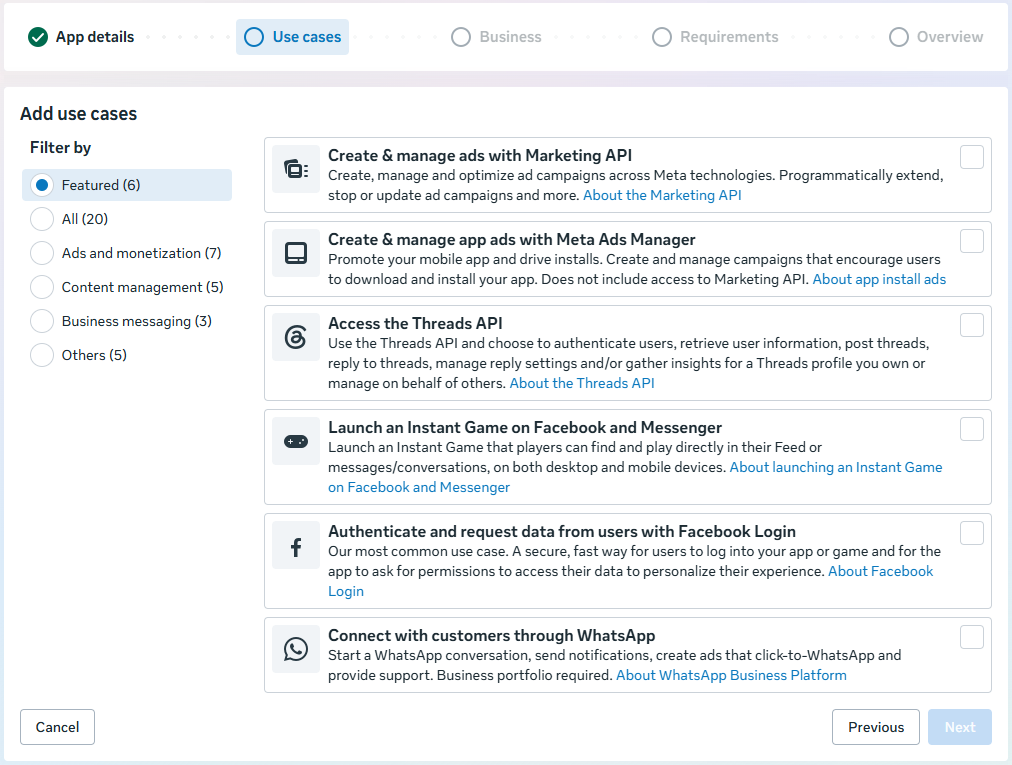
Figure 1: Select 'Connect with customers through WhatsApp' under Add use cases.
🔍Click to enlarge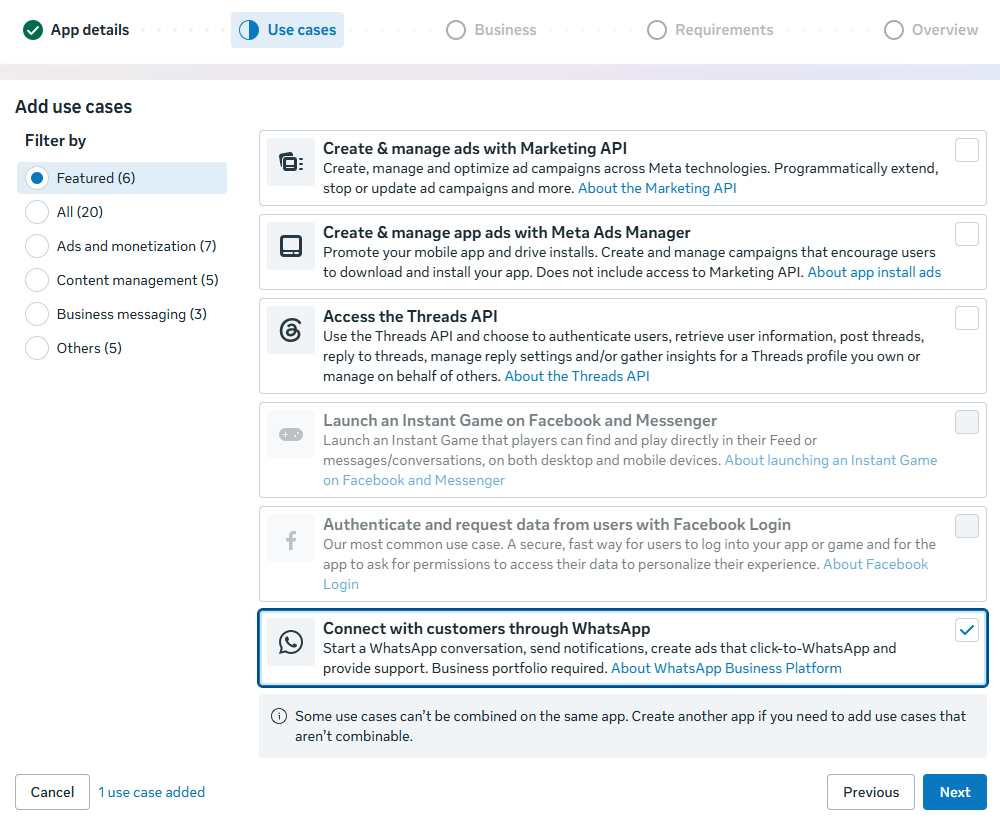
Figure 2: Verify selection with checkmark and click Next.
🔍Click to enlargeCreate or Select Meta Business Portfolio
Link your Meta App to your official Business Portfolio (Meta Business Suite).
- ✓If you do not have a portfolio, click 'create a business portfolio'.
- ✓Provide your Business Name (e.g. 'Arise Sell'), Your Name, and Business Email.
- ✓Click 'Create portfolio' and choose 'Verify later' on confirmation.
- ✓Select your newly created portfolio from the dropdown list and click 'Next'.
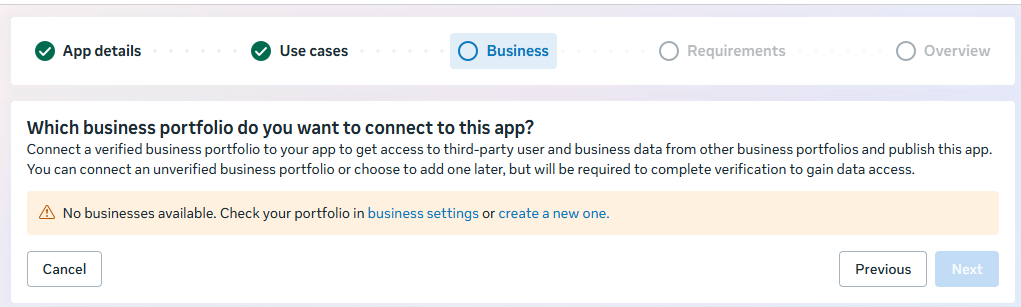
Figure 3: Portfolio selection prompt or click create portfolio.
🔍Click to enlarge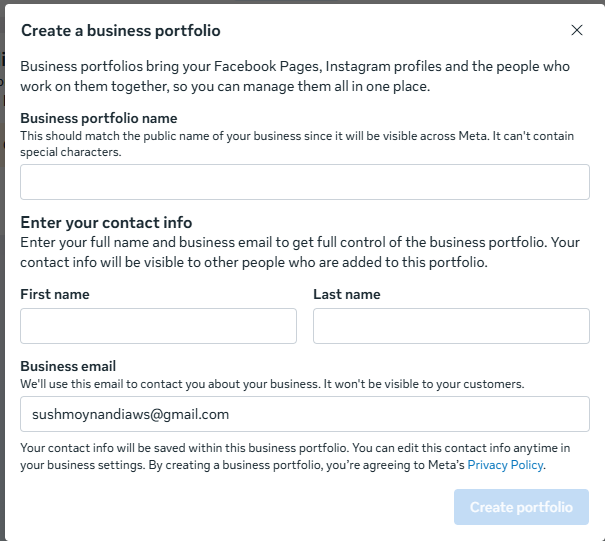
Figure 4: Fill in business name, contact name, and business email.
🔍Click to enlarge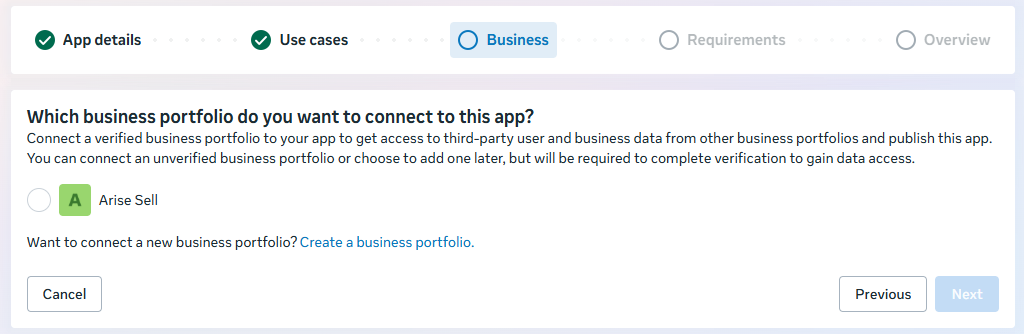
Figure 5: Select your Business Portfolio and click Next.
🔍Click to enlargeReview Requirements & Finalize Meta App
Confirm your app parameters and complete the Meta developer app creation.
- ✓Review the Publishing requirements overview screen and click 'Next'.
- ✓Check App Details (App Name, Use Case, Business Portfolio).
- ✓Click 'Create app' to open the WhatsApp Platform Dashboard.
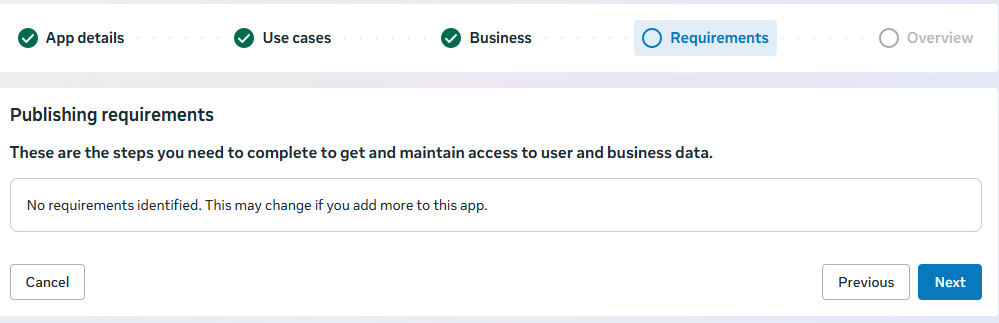
Figure 6: Publishing requirements overview checklist.
🔍Click to enlarge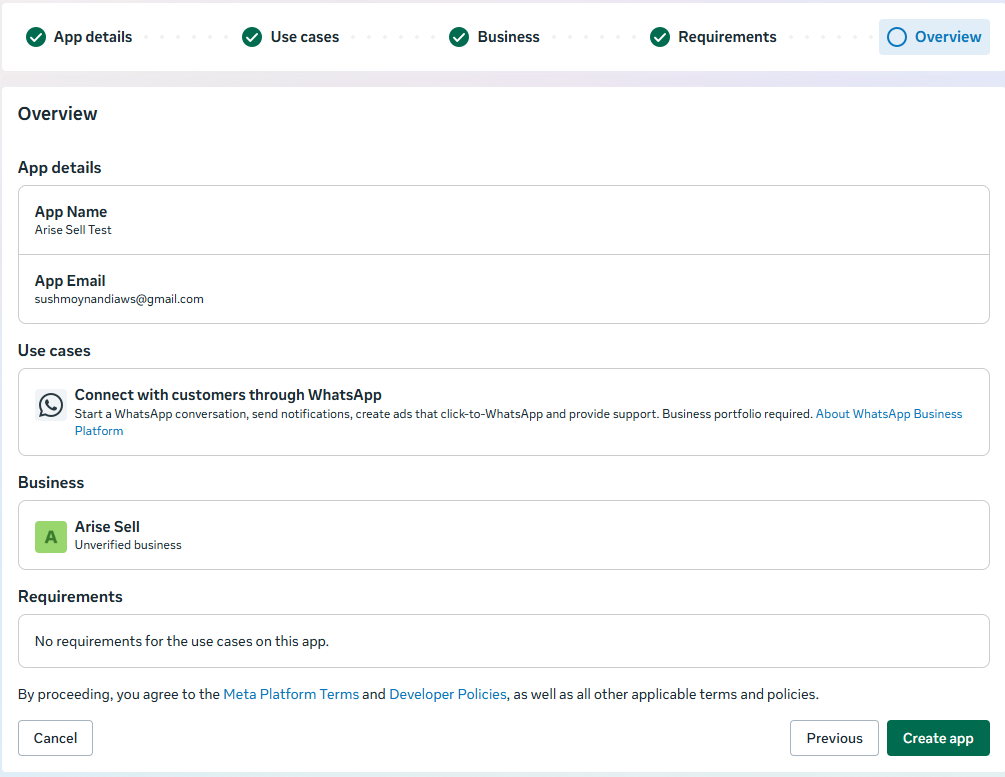
Figure 7: Final review screen with Create app button.
🔍Click to enlargeOpen WhatsApp Platform & Select Production Setup
Enter the official WhatsApp Cloud API configuration workspace.
- ✓Click 'Customize the Connect with customers through WhatsApp use case'.
- ✓Select your Business Portfolio ('Arise Sell') and click 'Continue'.
- ✓From the three-step integration dashboard, select 'Step 2. Production setup'.
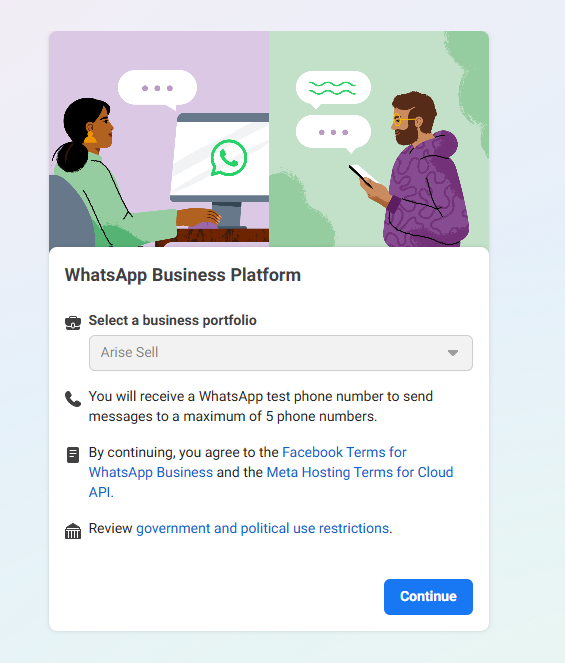
Figure 8: Connect WhatsApp Business Platform to your portfolio.
🔍Click to enlarge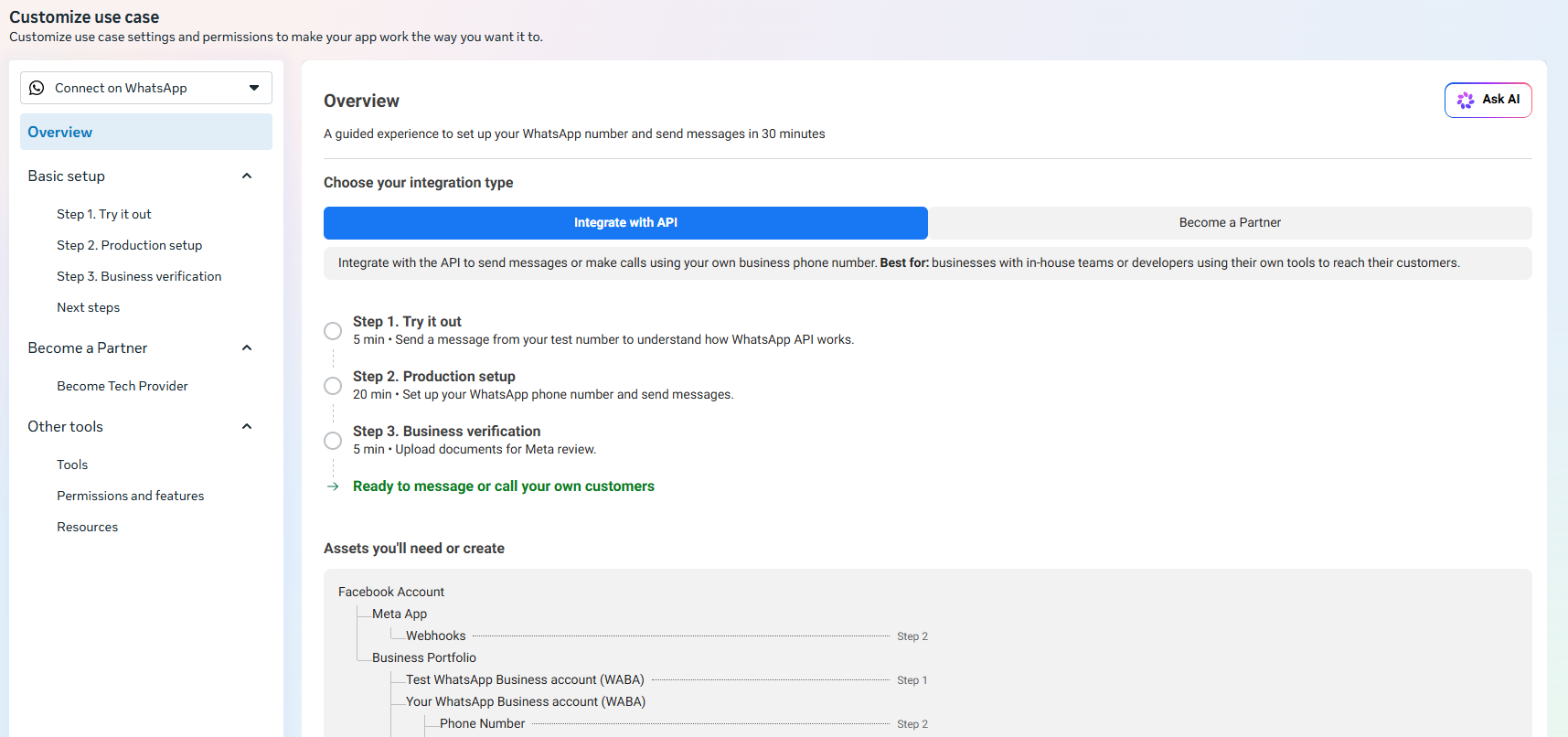
Figure 9: Select Step 2. Production setup for live commerce API.
🔍Click to enlargeConfigure AriseSell Webhook & Subscribe to Messages
Connect Meta's event edge to your live AriseSell webhook endpoint using your unique store verify token (snf-XXXXXXX) for instantaneous AI processing.
- ✓Expand 'Configure Webhooks' under Production setup.
- ✓Enter Callback URL:
https://arisesell.com/api/v1/webhooks/whatsapp - ✓Enter Verify Token:
snf-XXXXXXX📌 Where to find this token?You will find your store's unique secret verify token (formatted as snf-XXXXXXX) in the first 'Connect' tab under the 'Step 1: Meta Webhook Parameters' box. Copy it from there and paste it into Meta. - ✓Click 'Verify and save' to achieve instant HTTP 200 handshake.
- ✓Under Webhook Fields, click 'Manage' → Check 'messages' → Click 'Subscribe'.
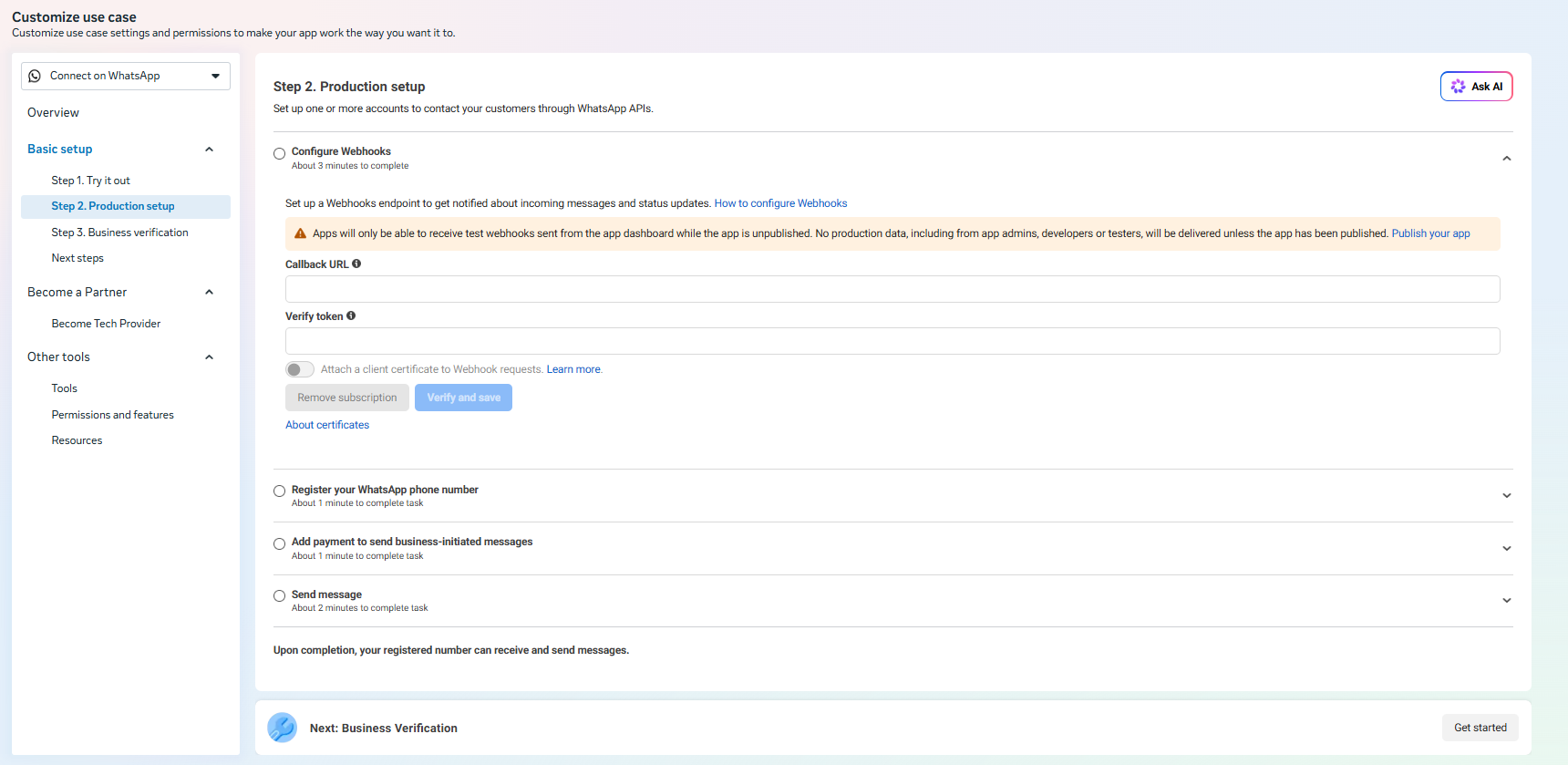
Figure 10: Enter Callback URL and Verify Token in Meta Webhook config.
🔍Click to enlarge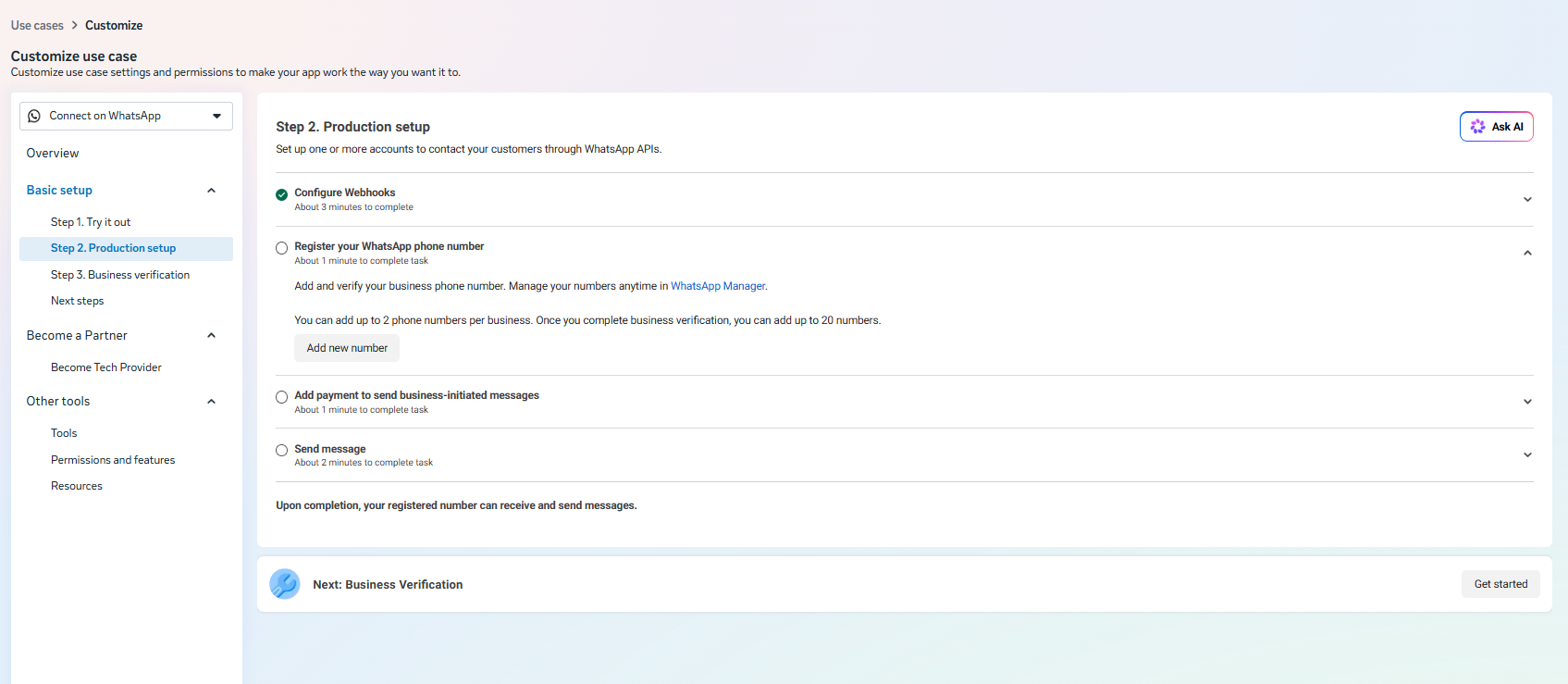
Figure 11: Webhook verified successfully with green checkmark.
🔍Click to enlargeRegister WhatsApp Business Number & Verify OTP
Register your dedicated SIM card on Meta Cloud API and receive your permanent Phone Number ID.
- ✓Under 'Register your WhatsApp phone number', click 'Add new number'.
- ✓Enter Business display name, website URL, and select Country (Bangladesh).
- ✓Create WhatsApp Business profile with Category (Retail/E-commerce) & Timezone (Asia/Dhaka).
- ✓Enter mobile number (e.g. +880 1401-4XXXXX) and select verification via Text Message (SMS) or Call.
- ✓Enter the 6-digit OTP code received on your phone.
- ✓Click 'Register' button next to your registered phone number card.
- ✓Toggle 'Subscribe webhooks' switch to ON to route incoming customer chats to AriseSell.
- ✓Copy your Phone Number ID (e.g. 135012XXXXXXXXXXX) and WABA ID (e.g. 213648XXXXXXXXXX).
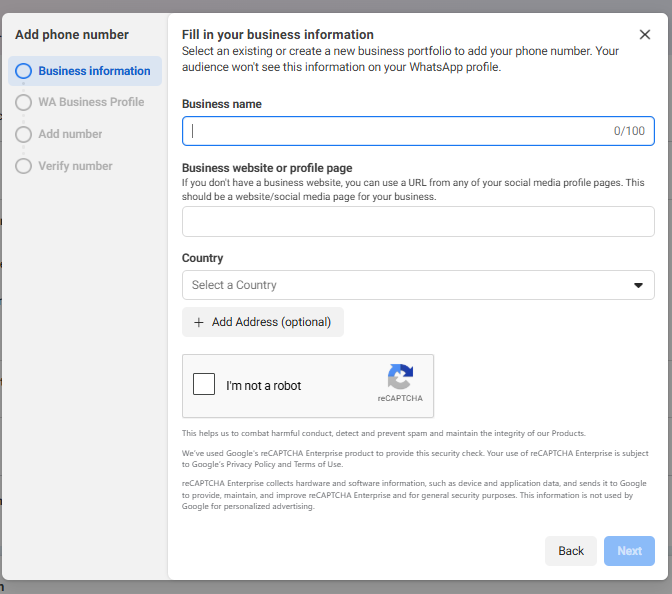
Figure 12: Fill in Business Information and Country.
🔍Click to enlarge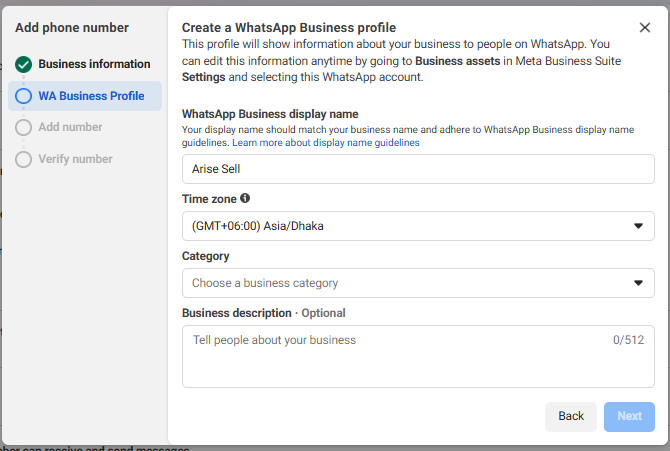
Figure 13: Create WhatsApp Business profile with Asia/Dhaka time zone.
🔍Click to enlarge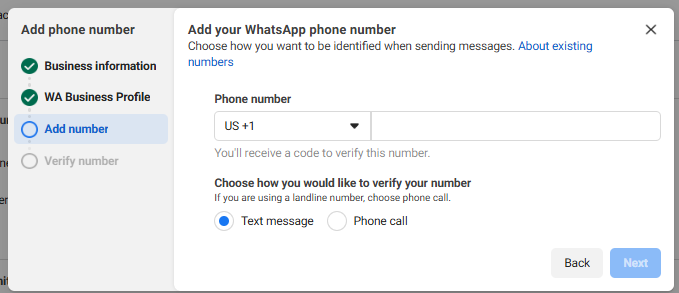
Figure 14: Enter Phone Number and select verification method (SMS / Call).
🔍Click to enlarge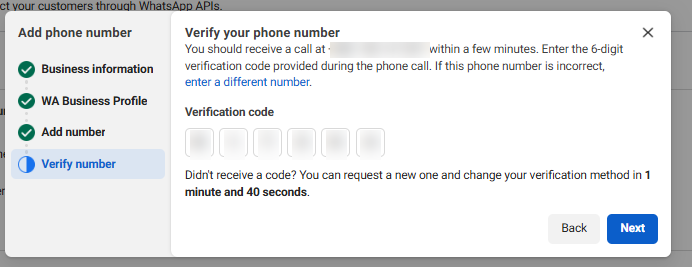
Figure 15: Enter the 6-digit OTP verification code.
🔍Click to enlarge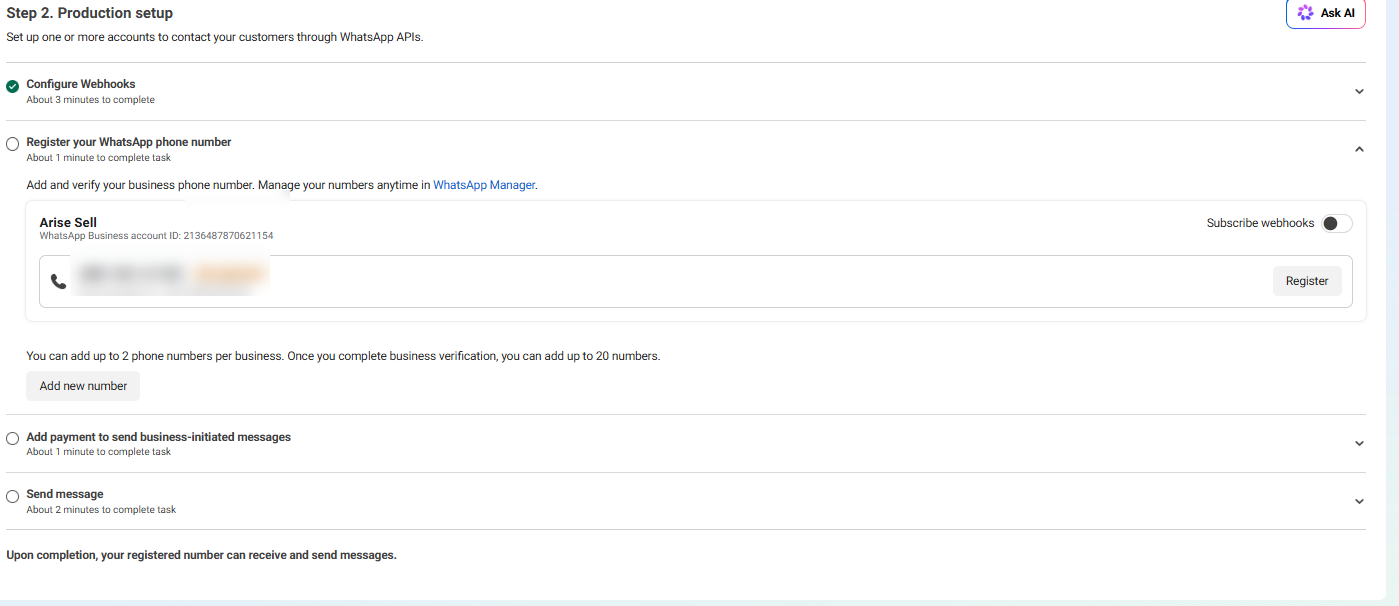
Figure 16: Number registered with Phone Number ID and WABA ID displayed.
🔍Click to enlargeCreate System User in Meta Business Suite
Create an Admin System User in Meta Business Settings to issue permanent 24/7 API tokens.
- ✓Go to Meta Business Settings: business.facebook.com/settings
- ✓In the left sidebar, navigate to Users → System users.
- ✓Click '+ Add' to create a new System User.
- ✓Set System user name: 'AriseSell Admin' and Role: 'Admin' → Click 'Create system user'.
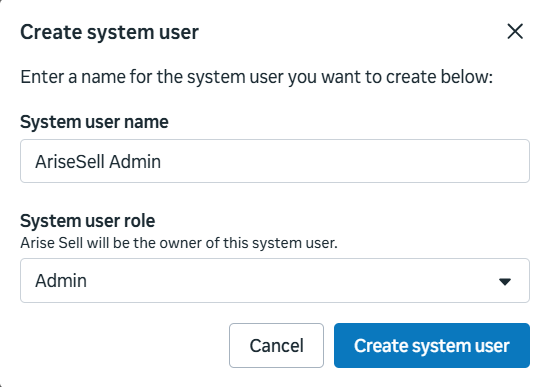
Figure 17: Create System User dialog in Meta Business Settings.
🔍Click to enlarge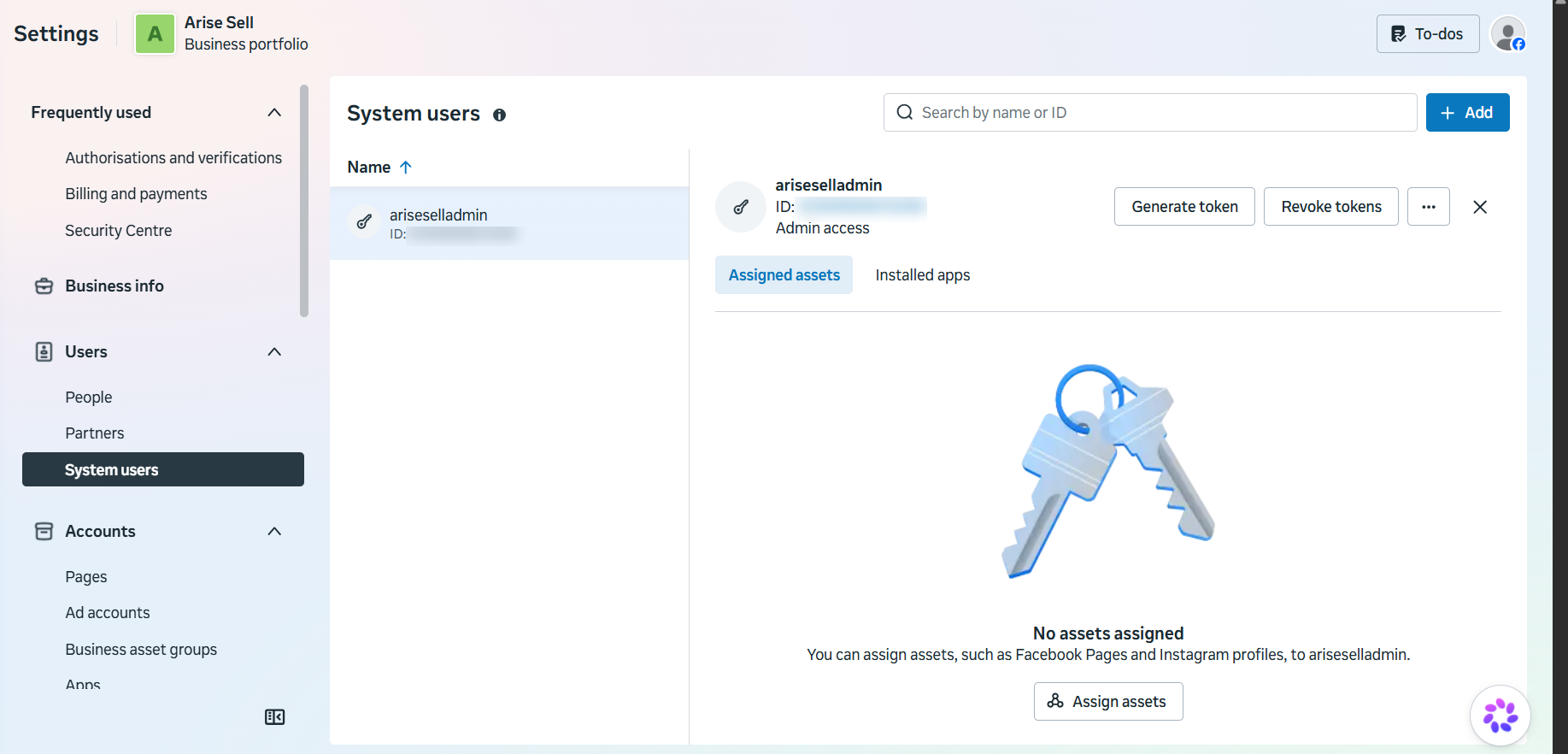
Figure 18: System user profile created and ready for asset assignment.
🔍Click to enlargeAssign App Assets & Full Access Permissions
Grant the System User full administrative control over your WhatsApp App.
- ✓Select your created System User ('AriseSell Admin') → Click 'Assign assets'.
- ✓Select 'Apps' → Check your WhatsApp App ('Arise Sell Test').
- ✓Under 'Full access', toggle 'Manage app' to ON.
- ✓Click 'Assign assets' to save permissions.
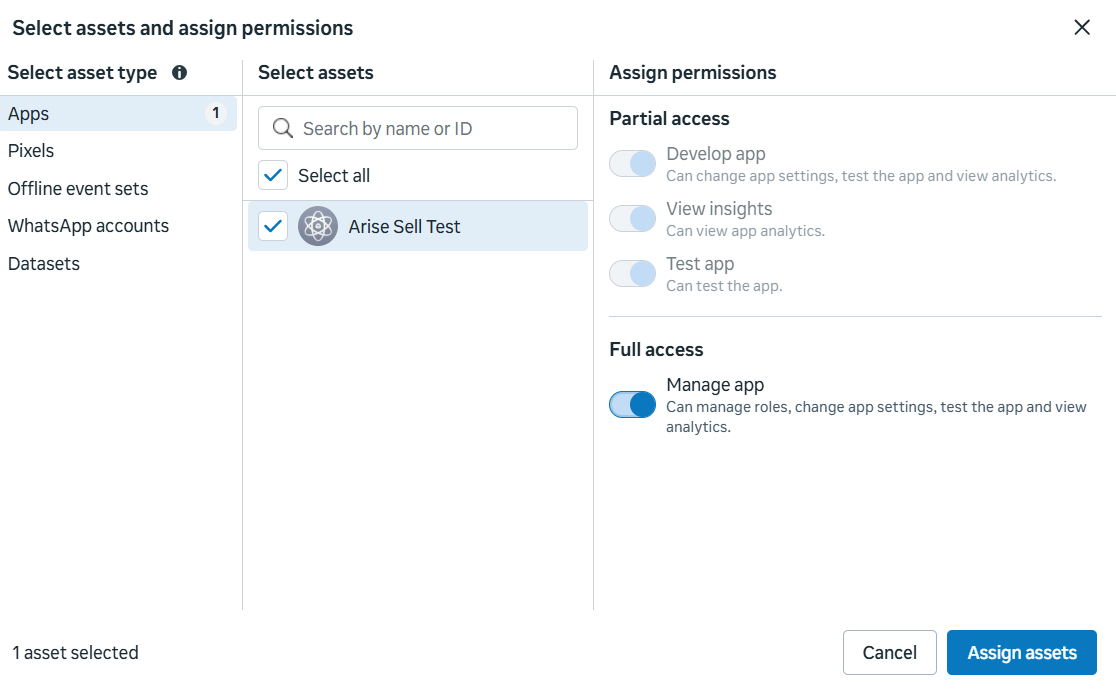
Figure 19: Assign App Asset with Manage app (Full access) toggled ON.
🔍Click to enlargeGenerate Never-Expiring Permanent Access Token
Generate a 100% permanent production token so your store AI never disconnects.
- ✓On the System User page, click 'Generate token'.
- ✓Select your WhatsApp App from the dropdown.
- ✓Under 'Token expiry', select 'Never'.
- ✓Under 'Select permissions', check these 3 required permissions:
- ✓✓ whatsapp_business_messaging
- ✓✓ whatsapp_business_management
- ✓✓ business_management
- ✓Click 'Generate token' and click 'Copy' on the displayed token (starts with EAAP...).
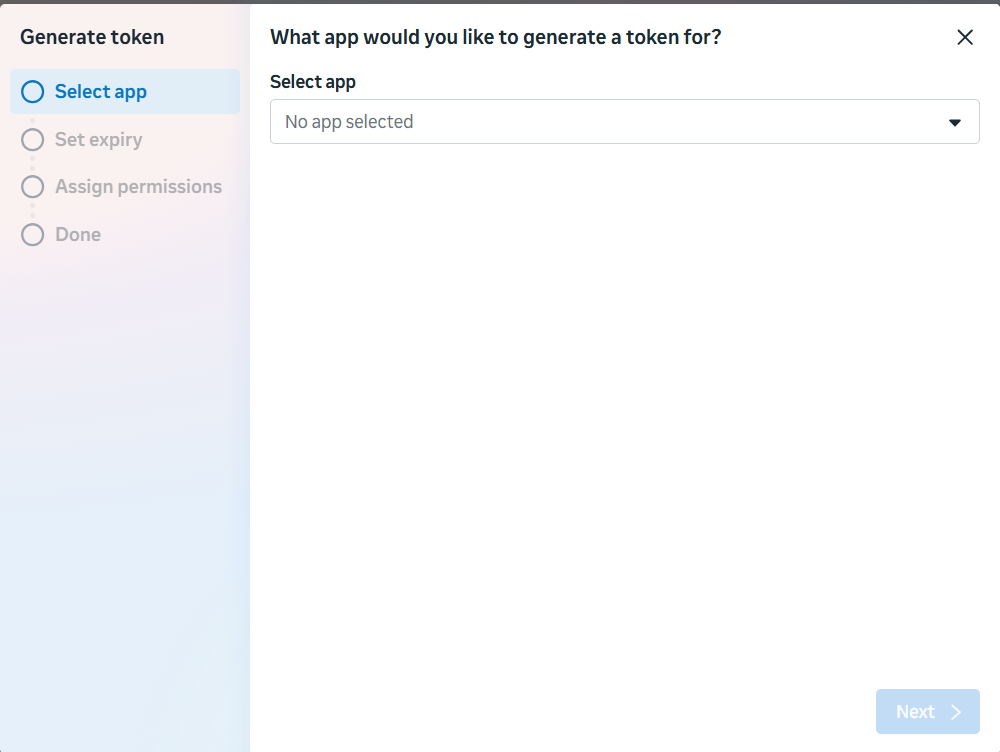
Figure 20: Select WhatsApp App for token generation.
🔍Click to enlarge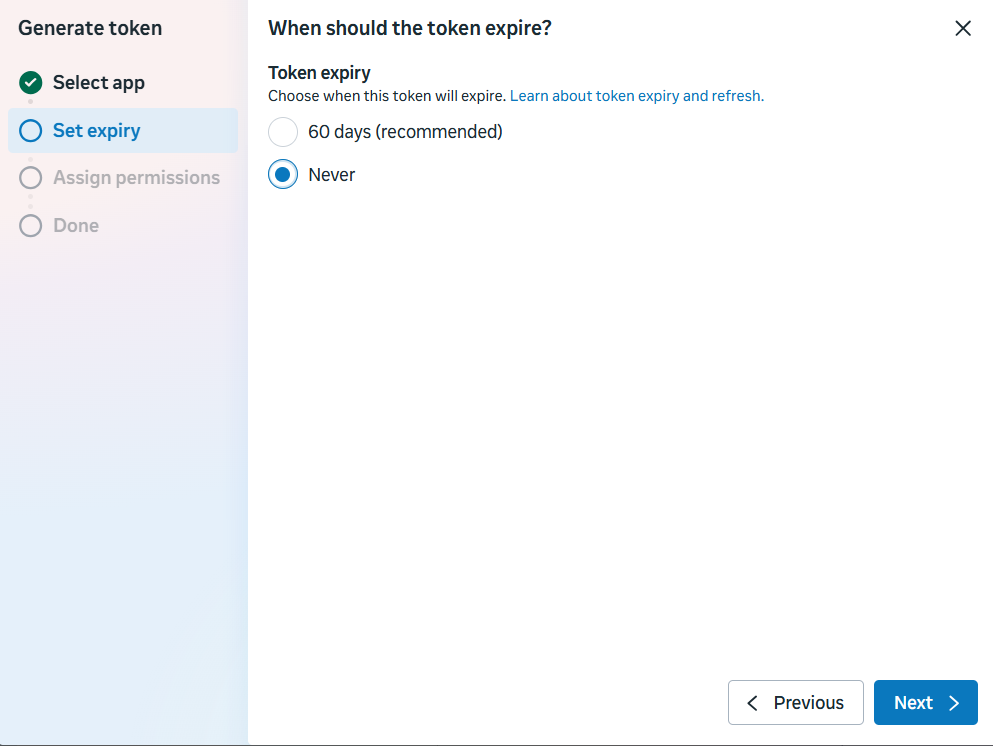
Figure 21: Select 'Never' for permanent token duration.
🔍Click to enlarge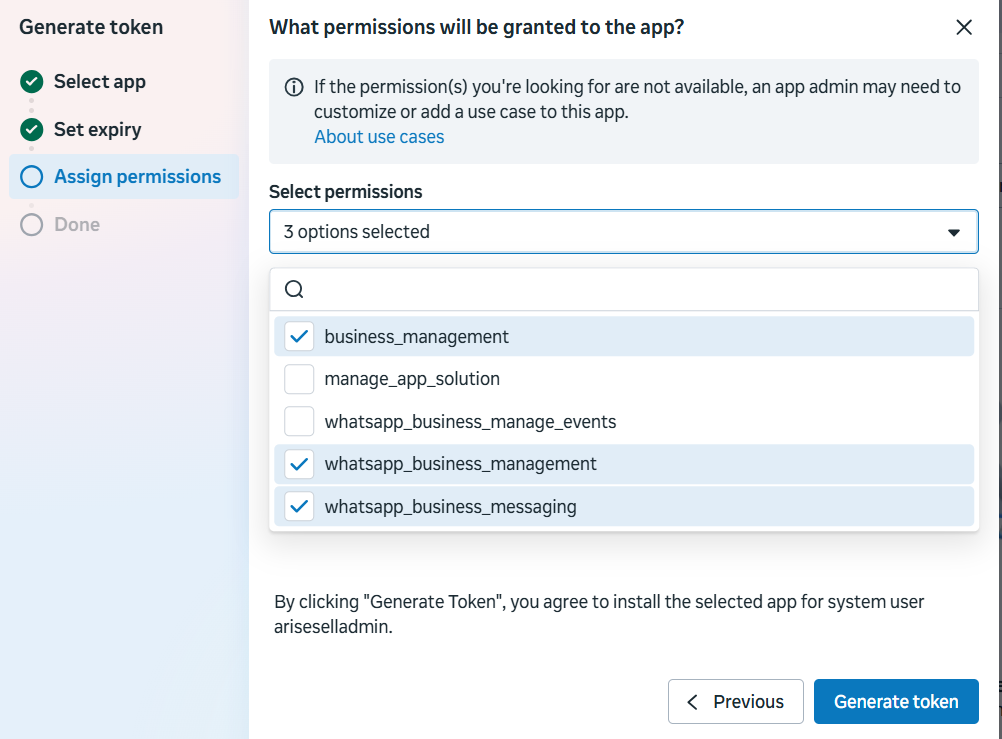
Figure 22: Select required WhatsApp permissions checklist.
🔍Click to enlarge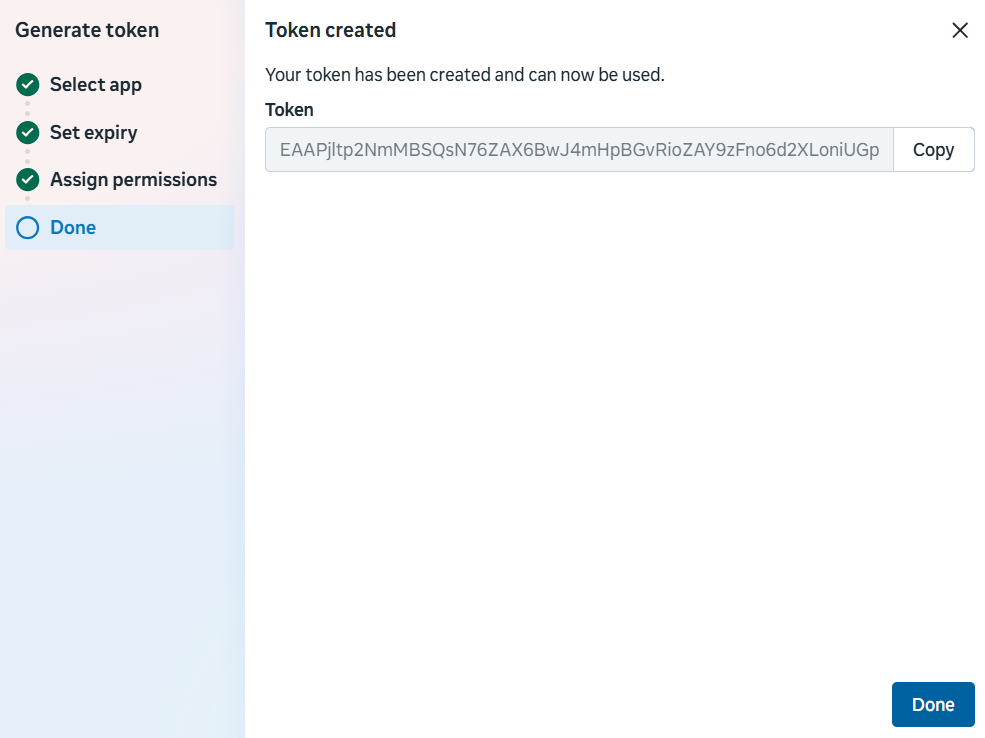
Figure 23: Copy your permanent production access token.
🔍Click to enlargePublish Meta Developer App (Switch to Live Mode)
Switch your Meta Developer App from 'Unpublished (In development)' to 'Published (Live)' so that any customer WhatsApp number in the world can message your business line.
- ✓Go to developers.facebook.com → Open your WhatsApp App.
- ✓In the left sidebar menu, navigate to App settings → Basic.
- ✓Fill in required fields: Category → Select 'Shopping' or 'Business and Pages', App domains & Privacy policy URL (e.g. your business website and privacy policy link).
- ✓Scroll down to the bottom and click 'Save changes'.
- ✓In the left sidebar menu, click 'Publish' (which shows 'Unpublished' badge).
- ✓Click the 'Publish App' button → The badge immediately changes to '🟢 Published'.
Figure 24: Meta App Settings Basic configuration & Publish panel.
🔍Click to enlarge1-Click Connect in AriseSell Merchant Console
Open your store integrations console and input your credentials to activate 100% automated AI sales.
- ✓Open your store dashboard: https://arisesell.com/console/integrations
- ✓Find 'WhatsApp Business (WABA)' and click 'Connect ➔' (or 'Manage' if updating).
- ✓1. WhatsApp Phone Number: Enter your registered SIM number with country code (e.g. +880 1401-4XXXXX).
- ✓2. Store / Business Name: Enter your store display name (e.g. 'My Brand Store').
- ✓3. Phone Number ID: Find it in developers.facebook.com → Your App → WhatsApp → API Setup (under 'Phone number ID'), or from Step 6 registration screen.
- ✓4. WABA ID: Find it in developers.facebook.com → Your App → WhatsApp → API Setup (under 'WhatsApp Business Account ID'), or from business.facebook.com/settings → Accounts → WhatsApp accounts.
- ✓5. Permanent System User Access Token: Copy from business.facebook.com/settings → Users → System users → 'AriseSell Admin' → Generate token (starts with EAAP... / EAAG...).
- ✓Click 'Connect WhatsApp' → Your integration badge turns '🟢 Active & Automated' and your AI sales bot is instantly LIVE 24/7!
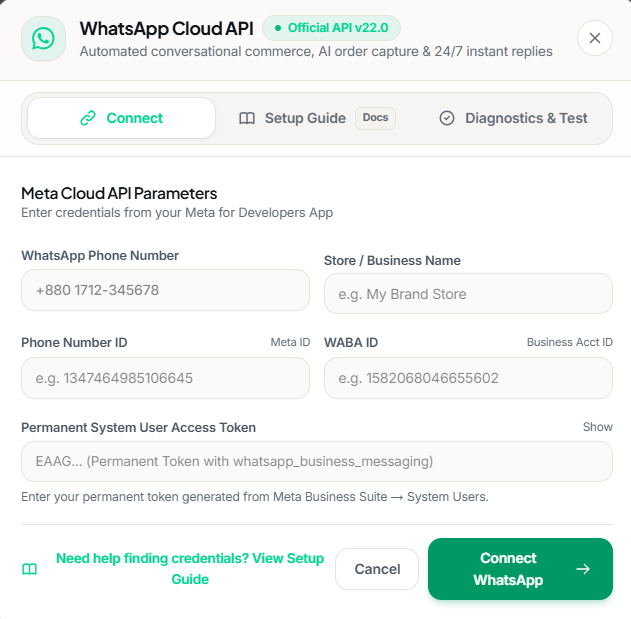
Figure 25: WhatsApp Cloud API Connection Modal in AriseSell Merchant Console.
🔍Click to enlargeBuilt for High-Volume E-Commerce Brands
Zero Ban Risk
Unlike unofficial QR code scraping extensions that get WhatsApp numbers banned, Meta Cloud API is 100% compliant with Meta's Commercial Terms of Service.
Sub-2-Second AI Sales Engine
Direct webhook ingestion feeds messages to Google Gemini 3.5 Flash, providing lightning-fast, polite replies with product recommendations and delivery rates.
Human Live Takeover
You and your team can monitor active conversations in real-time from the Live Stream Inbox and seamlessly take over any chat with 1 click.
Common Setup Questions & Solutions
Double grey ticks on WhatsApp, but no reply from the bot?
Make sure your WhatsApp SIM card is deleted from any mobile WhatsApp or Business app (Settings → Account → Delete my account). WhatsApp will route chats to the mobile app instead of Cloud API if the account remains bound. Also ensure you are testing from an independent phone number.
Webhook handshake verified, but incoming messages don't reach the server?
You must subscribe to webhook fields! In your Meta Developer App, go to WhatsApp → Configuration → Webhook fields → Click 'Manage' → Check the box for 'messages' → Click 'Subscribe'.
Why does the token expire after 24 hours?
Developer portal temporary tokens expire in 24 hours. You must create a System User in Meta Business Suite (business.facebook.com/settings) and generate a permanent token with Token Expiration set to 'Never'.
Does each store owner get a separate isolated WhatsApp connection?
Yes! AriseSell enforces strict multi-tenant tenant isolation. Connecting your phone number binds it exclusively to your store, keeping all customer chats, catalog items, and orders completely isolated from other merchants.
Get started today
Your next customer is typing right now.
Connect your page, upload your products, and start with 50 free AI messages. If it doesn't earn its keep, walk away — nothing to cancel, nothing owed.
- No card needed
- Live in 10 minutes
- Cancel whenever you like
What happens in the first week
- Day 1Your page is connected and answering in Bangla.
- Day 2Your catalog is synced; photo matching switches on.
- Day 4First orders confirmed and booked with the courier.
- Day 7You see your automated chats, closed sales, and ROI.